Campaigns
Campaigns are the newsletters you send to your subscribers. Everything happens on one screen: you write the subject, pick a template, choose recipients, then save, preview, test, and send.
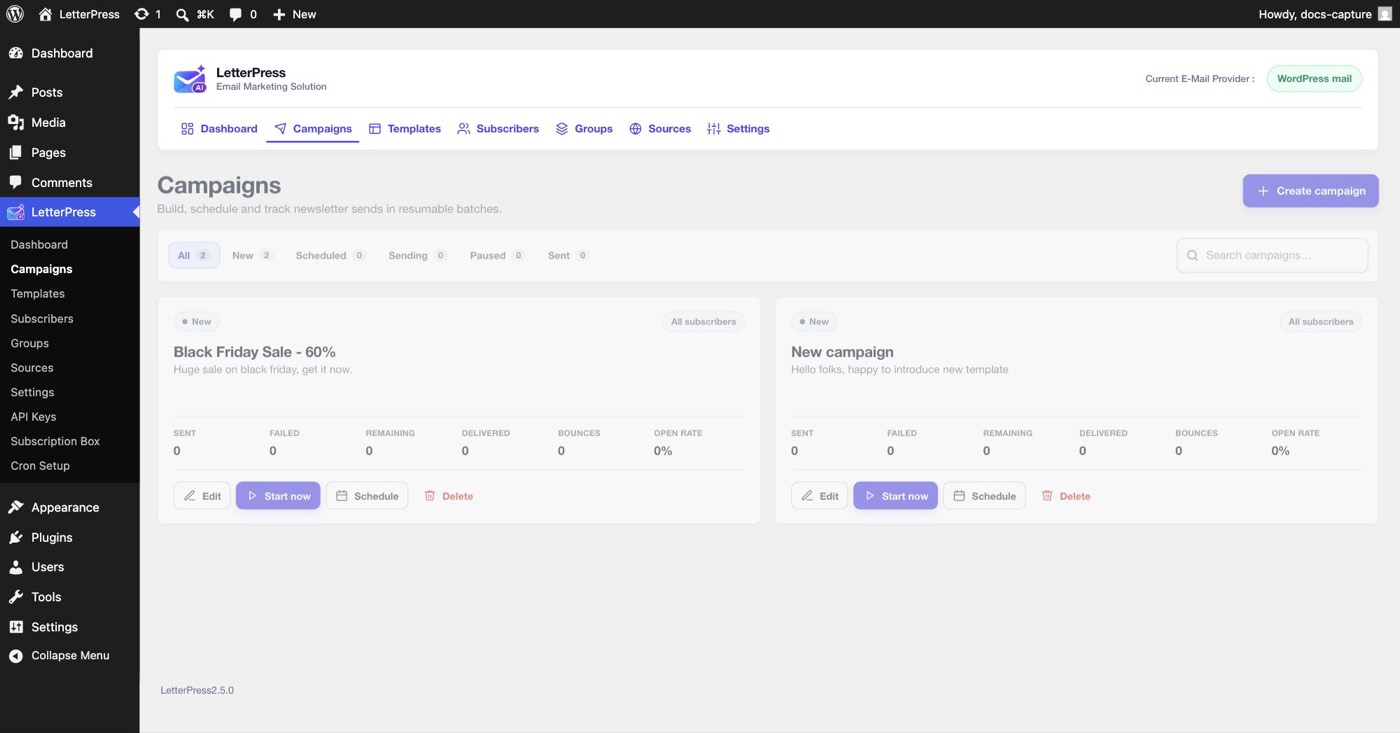
Open LetterPress > Campaigns to see the list. Status filters at the top show every campaign and how many are in each state.
Creating a campaign
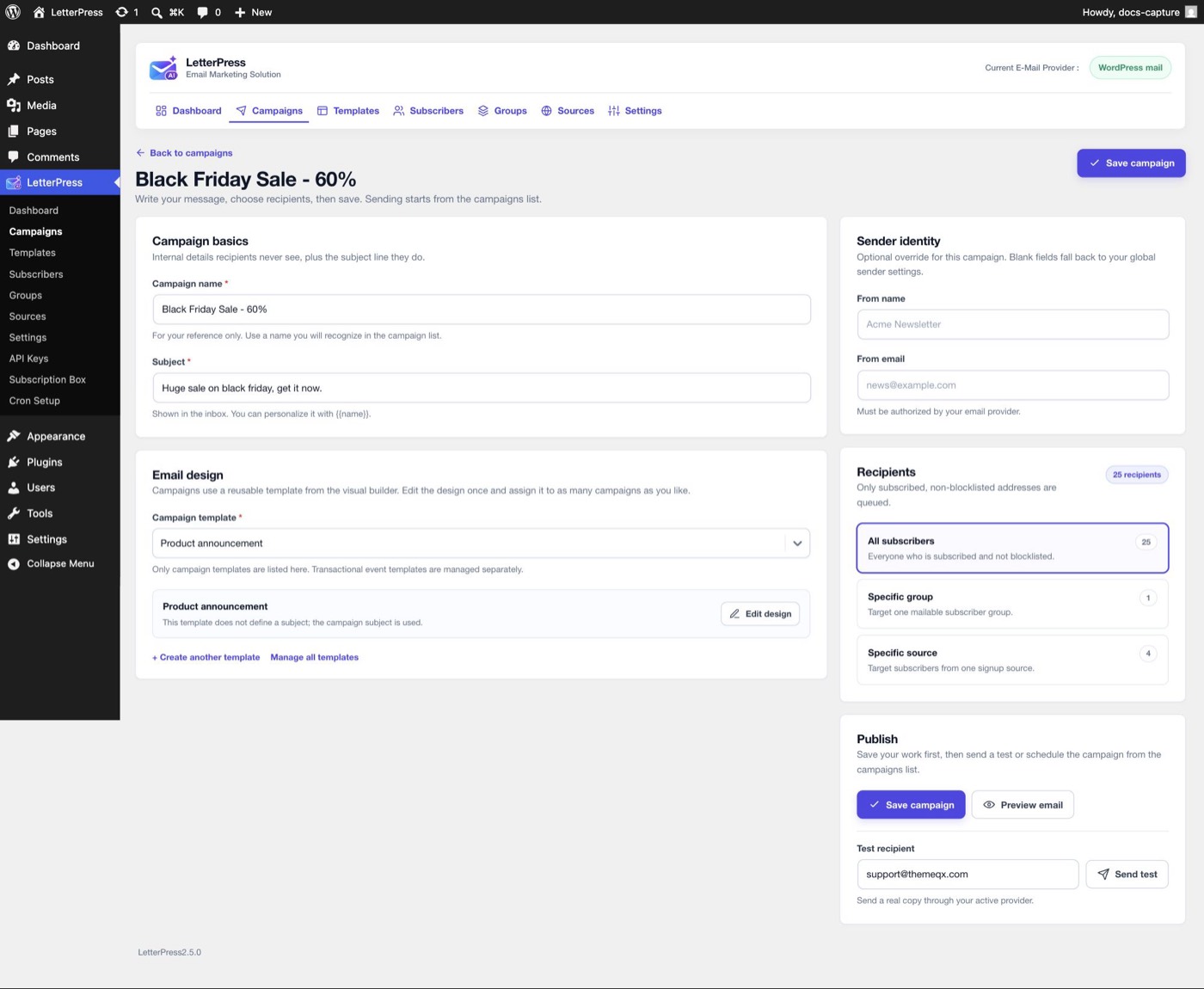
- Go to LetterPress > Campaigns and click Create campaign.
- Fill in the campaign basics:
- Campaign name is for your reference only. Use a name you will recognize in the list.
- Subject is shown in the inbox. Personalize it with variables such as
{{first_name}}, for example{{first_name}}, here is what is new.
- Pick the Campaign template. Only campaign templates appear here. Transactional templates are managed separately under Templates > Transactional.
- Optionally override the Sender identity for this campaign. Blank fields fall back to your global sender settings.
Click Edit design to open the selected template in the builder, Create another template for a new one, or Manage all templates to go to the template list.
Choosing recipients
The recipients card filters itself to confirmed, non-blocklisted addresses, and shows the exact count before you send:
| Option | Who receives it |
|---|---|
| All subscribers | Everyone who is subscribed and not blocklisted |
| Specific group | Members of one group |
| Specific source | Subscribers who signed up through one source |
The audience count is calculated again when the queue is built. A contact who unsubscribes or gets blocked after you save but before sending is left out.
Personalization
Use merge tags in the subject, headings, text, buttons, and footer. The builder lists the available tags, and the common ones are documented in the Email Builder.
{{name}} falls back to there when a subscriber has no stored name. {{first_name}} uses the first word of the name, and also becomes there when no name exists. That keeps a greeting like Hi {{first_name}}, readable for every contact.
Saving, previewing, and testing
- Save campaign stores your work. Sending always starts from the campaigns list, never by accident from the editor.
- Preview email renders the template with sample data so you can check the design.
- Test recipient sends a real copy through your active provider. Use an address already in your subscriber list to see personalization and the unsubscribe link resolve properly.
Save the campaign before sending a test. The test action works on the saved subject, template, and sender identity.
Starting and scheduling
From the campaigns list, each campaign card shows live counters and its available actions.
- Start now begins delivering immediately through your configured provider, in resumable batches paced by your sending limits.
- Schedule queues the campaign for a future date and time. LetterPress processes the queue through WordPress cron, so review Cron Setup to keep scheduled sends on time.
A scheduled campaign that reaches its time moves to Sending automatically. Starting a scheduled campaign early clears the schedule and sends right away.
Pausing and resuming
While a campaign is sending, its action changes from Start now to Pause.
- Click Pause to stop the worker from claiming new recipients.
- The campaign moves to the Paused filter. Emails already in the current batch can finish, but no new batch starts.
- Click Resume when you are ready. The worker is scheduled again and continues from the remaining queue.
Pausing does not lose progress. Sent, failed, and remaining counters stay as they were, and resuming continues with the recipients who are still pending.
A sent campaign cannot be paused, started again, or rescheduled. You can still delete it.
Reusing a campaign
LetterPress does not have a separate duplicate campaign action. To reuse a send, duplicate its template instead.
- Open Templates and find the campaign template.
- Click Duplicate. This creates a copy named with (copy) after the original.
- Create a new campaign and select the copied template.
The duplicate keeps the design, subject, sender fields, and enabled state of the template. It does not copy the campaign audience, schedule, or report data, which is what you want for a fresh send.
Reading campaign results
The campaign card updates while sending runs. After it finishes:
| Metric | Meaning |
|---|---|
| Sent | Emails handed to your provider |
| Failed | Emails the provider rejected |
| Remaining | Queue left to process |
| Delivered | Emails confirmed as delivered |
| Bounces | Emails that could not be delivered |
| Open rate | Opens divided by sent |
Opens and clicks require event tracking. Enable it under Settings > Event tracking and connect the matching webhook in your provider account. See Event tracking and webhooks.
Delivery, bounce, and open counts depend on provider events. WordPress mail and generic SMTP do not send those events, so those columns can stay at zero even when the campaign itself completed.
Unsubscribes
Every campaign email carries a personalized unsubscribe link through the footer block. When a subscriber unsubscribes, LetterPress changes their status, adds them to the blocklist, and excludes them from future campaigns automatically. List-Unsubscribe headers are added as required by major inbox providers.
Next steps
- Segment your audience with Groups and Sources.
- Review suppressed addresses in Blocklist.
- Let AI draft your next campaign email with AI Email Generation, available in LetterPress Pro.