Introduction
By default WordPress sends email through your hosting server's PHP mail function. Those emails often land in spam, get rate limited, or never arrive. LetterPress fixes this by routing email through a proper delivery provider or SMTP server.
You do not need the marketing features to use LetterPress this way. It works fine as a pure SMTP plugin with everything else untouched.
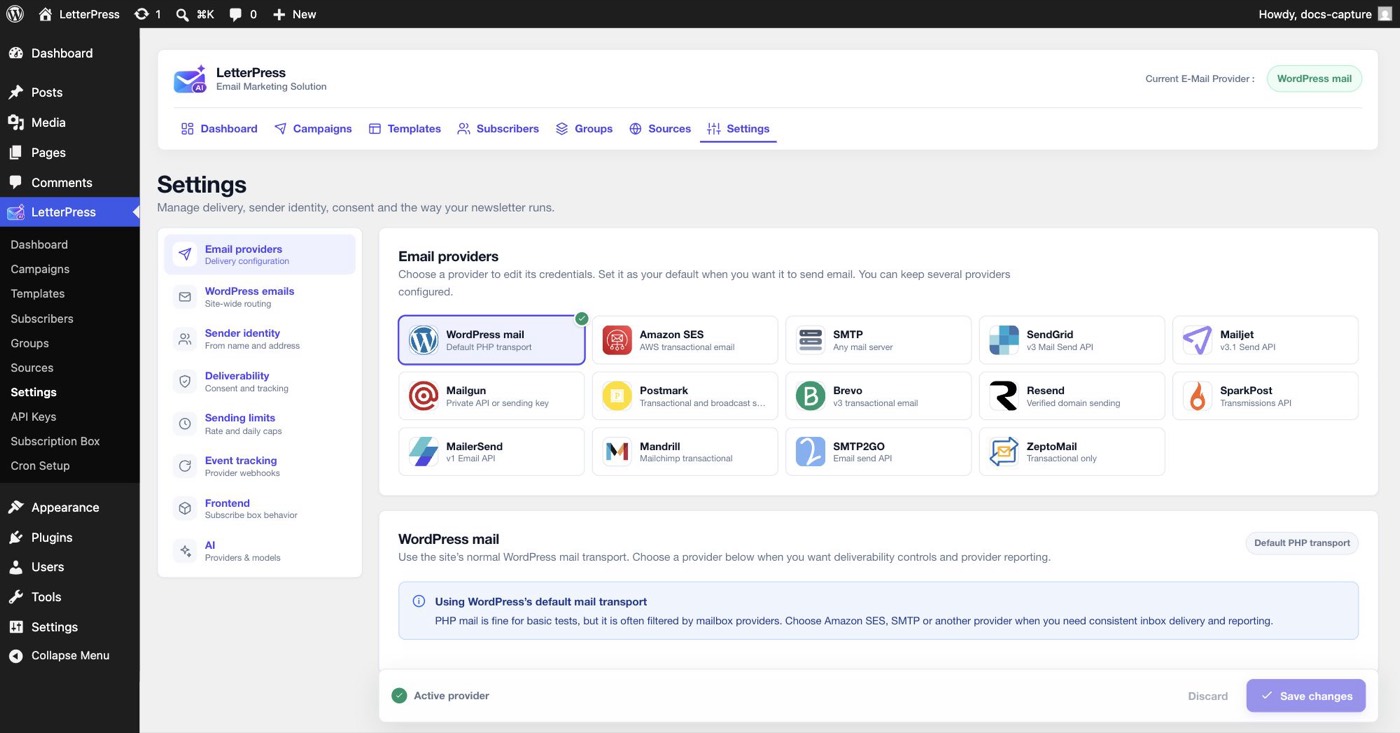
Open LetterPress > Settings > Email providers.
Choosing a provider
Pick a provider card to edit its credentials. You can keep several providers configured and switch the default at any time. Settings for inactive providers are kept.
| Provider | What you need |
|---|---|
| WordPress mail | No setup. Uses the site's default PHP transport |
| Amazon SES | Access key ID, secret access key, AWS region, optional configuration set |
| SMTP | Host, port, encryption, username, password, optional authentication toggle |
| SendGrid | API key with Mail Send permission |
| Mailjet | API key and secret key |
| Mailgun | API key, verified sending domain, US or EU region |
| Postmark | Server API token, optional broadcast stream |
| Brevo | API key |
| Resend | API key |
| SparkPost | API key with Transmissions permission, US or EU region |
| MailerSend | API token |
| Mandrill | API key |
| SMTP2GO | API key, or SMTP2GO SMTP credentials through the SMTP provider |
| ZeptoMail | Send mail token and the matching data center |
Only the provider marked as default sends. Open a provider, fill in its credentials, click Set as Default Provider, then Save changes.
Setting up generic SMTP
- Click the SMTP card.
- Enter the Host and Port. For Amazon SES SMTP the host looks like
email-smtp.us-east-1.amazonaws.com. Use 587 with TLS, 465 with SSL, or 25 without encryption. - Enter the username and password from your email host.
- Leave SMTP authentication on unless you are using an unauthenticated local relay.
- Click Set SMTP as Default Provider, then Save changes, and run the connection test.
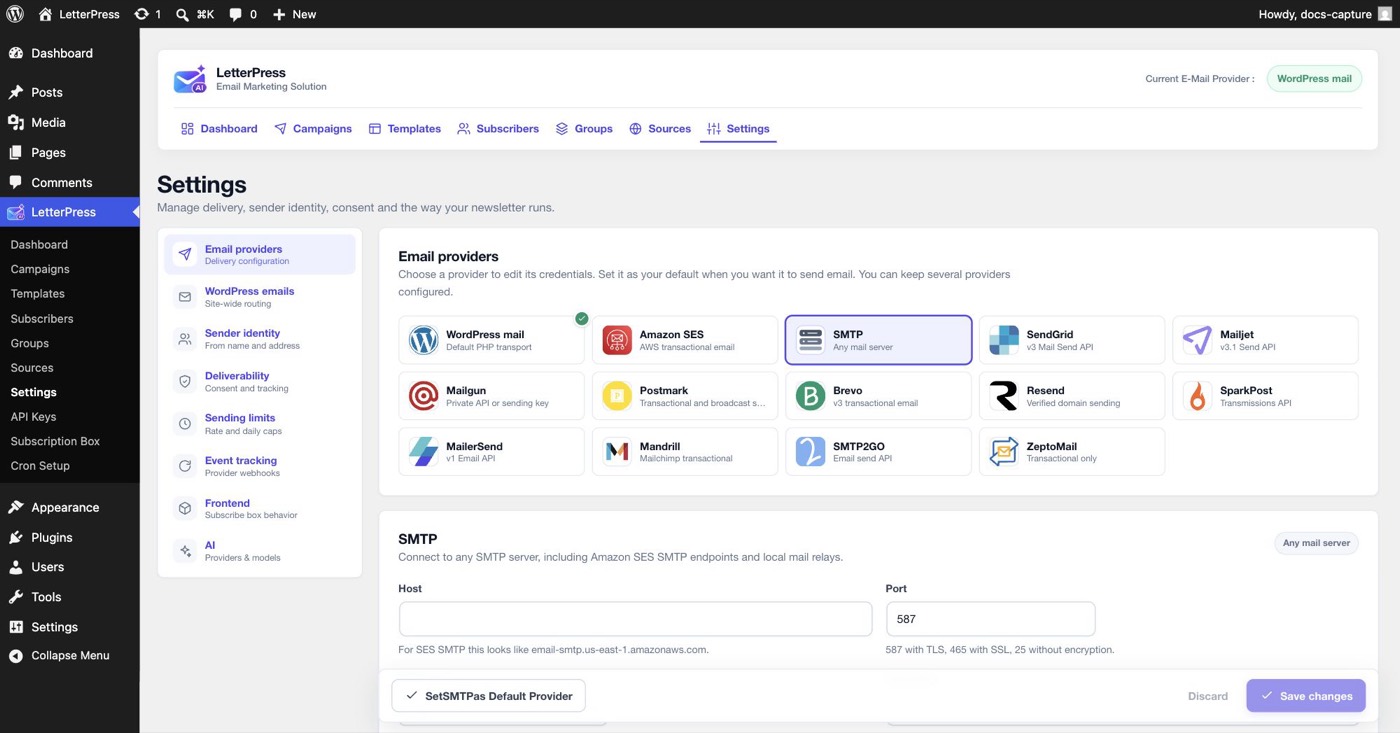
The SMTP provider is also the right choice when a service gives you SMTP credentials instead of an API key. SMTP2GO is the common example: you can use its API key on the SMTP2GO card, or choose the SMTP card and enter the SMTP host, port, and credentials from your SMTP2GO account. Both paths deliver the same mail. The API card adds a connection test against the API key, while the SMTP card tests the SMTP login.
Provider-specific settings
Amazon SES
Choose the AWS region where your sending identity is verified. Email sent from an unverified region is rejected, even when the same domain is verified somewhere else.
The Configuration set field is optional. Add one when you publish SES events to an SNS topic for delivery, bounce, complaint, or open tracking. Without a configuration set, SES does not publish those events. LetterPress sends the configuration set with every API message when the field is filled.
If you use SES through generic SMTP instead of the SES card, set a default configuration set on the verified SES identity in AWS. Generic SMTP does not inject SES-specific headers.
Mailgun
Choose US or EU to match the region where your Mailgun domain was created. The API host changes with the region:
| Region | API host |
|---|---|
| US | api.mailgun.net |
| EU | api.eu.mailgun.net |
The From address must belong to a domain verified in the selected region. A domain verified in one region is not automatically available in the other.
Postmark
Postmark separates transactional and broadcast streams. LetterPress uses the server's default stream for transactional email. For campaigns, add the broadcast stream ID, for example broadcasts, in the Broadcast stream field.
Leave the field blank when you want campaigns to use the transactional stream too. Copy the stream ID from your Postmark server settings.
SparkPost
Choose US or EU to match your SparkPost account. The API host changes with the region:
| Region | API host |
|---|---|
| US | api.sparkpost.com |
| EU | api.eu.sparkpost.com |
The API key needs Transmissions read and write permission, and the sending domain must be verified in the selected region.
ZeptoMail
Choose the Data center that matches your ZeptoMail account. LetterPress uses the matching API host:
| Data center | API host |
|---|---|
Global (com) | api.zeptomail.com |
Zoho (cpaas) | cpaas.zoho.com |
Europe (eu) | api.zeptomail.eu |
India (in) | api.zeptomail.in |
Australia (com.au) | api.zeptomail.com.au |
Japan (jp) | api.zeptomail.jp |
Canada (ca) | api.zeptomail.ca |
ZeptoMail is a transactional service. It does not allow bulk promotional newsletters, so use another provider for campaigns and keep ZeptoMail for account and order email if your plan requires it.
SMTP2GO
SMTP2GO offers two paths in LetterPress:
- API key: use the SMTP2GO card with a key that has
/email/sendpermission. - SMTP credentials: use the generic SMTP card with the SMTP host, port, username, and password from your SMTP2GO dashboard.
Use the API card when you want the built-in key test and API-level error messages. Use SMTP when your account already sends through SMTP or when your firewall only allows SMTP ports.
Sending a test
Every provider configuration includes a connection test. Run it after setup and after any change. If the test fails, LetterPress shows the provider's error message so you can fix credentials or domain verification directly.
WordPress mail has no test because there is no provider account to validate. Use Settings > WordPress emails to send a real test through the site's transport.
Credentials
Provider credentials are saved as LetterPress settings. Password fields are masked in the admin, and only users who can manage LetterPress settings can view or change them.
Keep database backups and exports private. Treat provider API keys like passwords, and revoke a key at the provider when it is no longer needed.
Routing WordPress emails
Under Settings > WordPress emails you decide how the site's own email is sent.
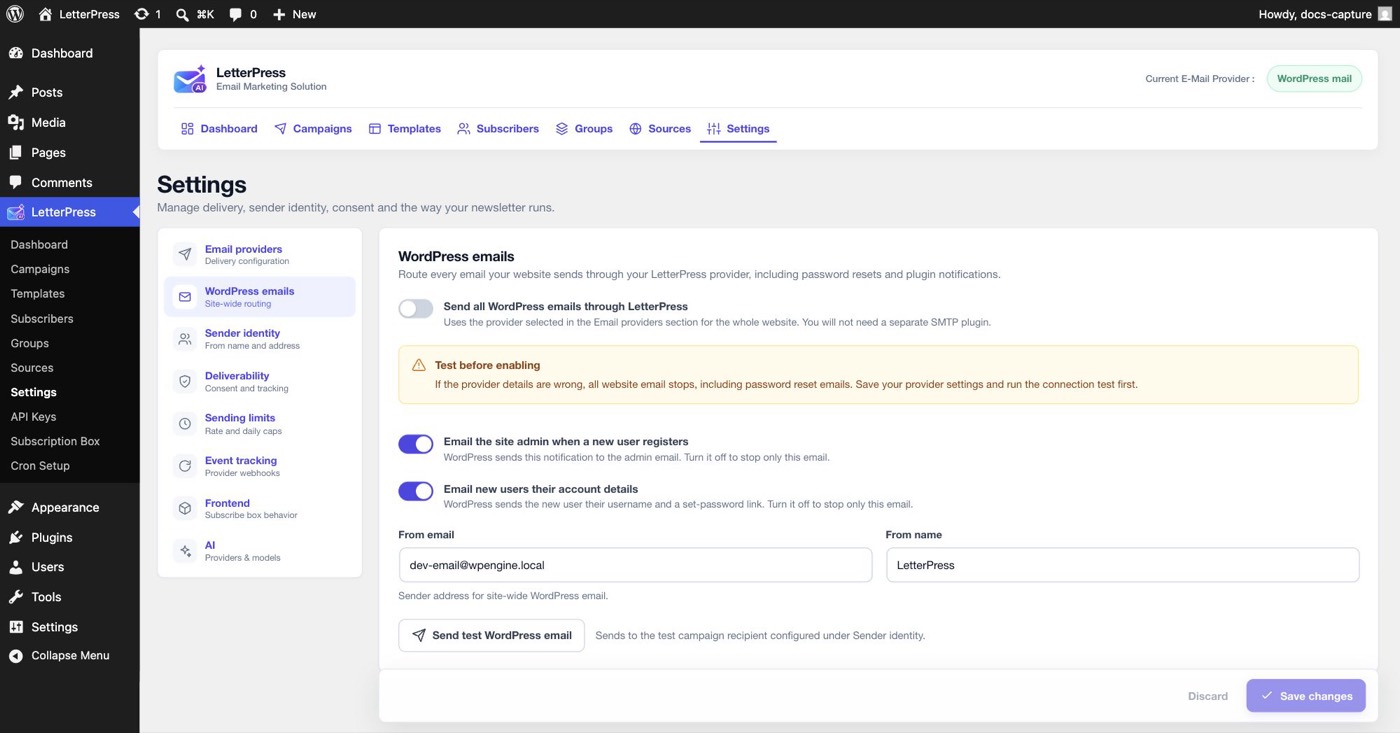
- Send all WordPress emails through LetterPress routes password resets, registration notifications, comment notifications, and emails from other plugins through your selected provider. With this on, you do not need a separate SMTP plugin.
- The warning matters: if provider details are wrong, all website email stops. Save your provider settings and run the connection test before enabling.
- Two per-notification toggles let you silence only the admin registration notice or the new-user account email without touching WordPress core.
- From email and From name set the sender address for site-wide WordPress email.
- Send test WordPress email delivers a real test to the address configured under Sender identity.
Sender identity
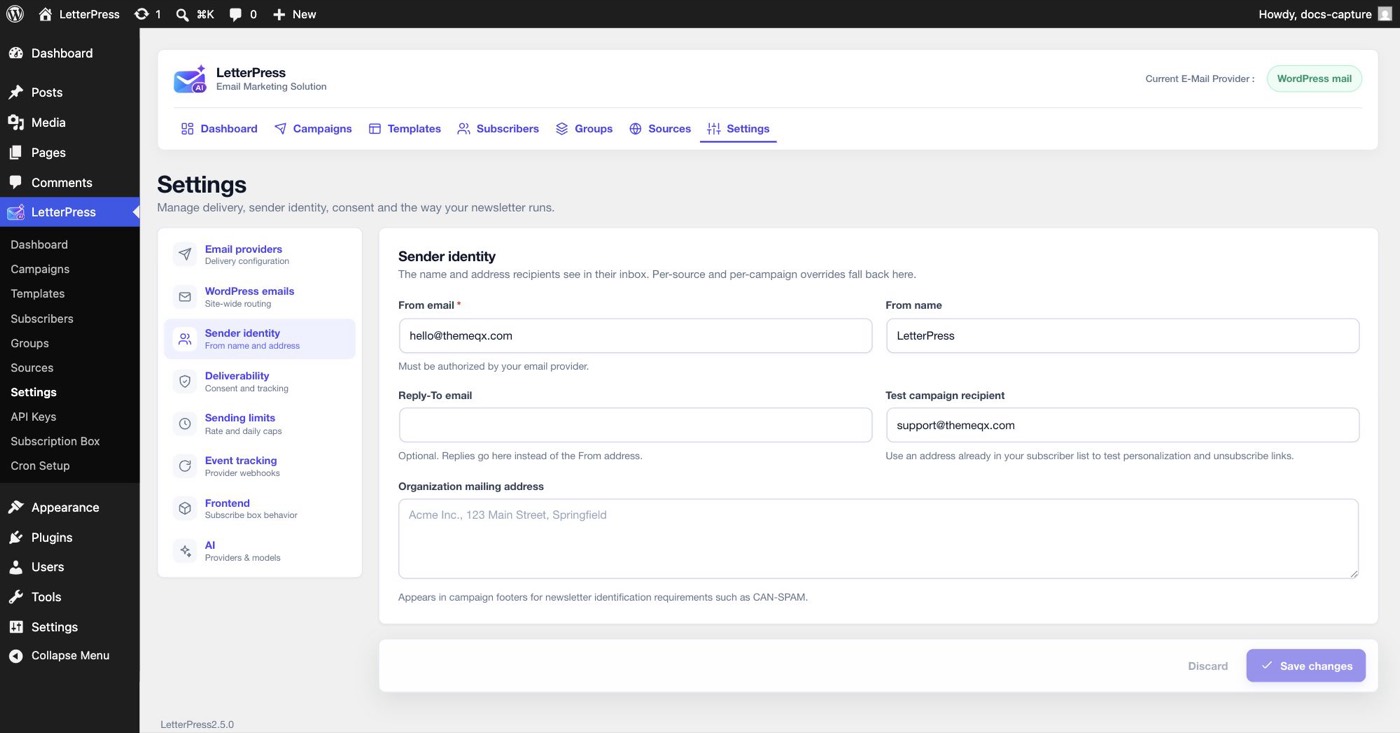
Under Settings > Sender identity you set the global sender that campaigns and sources fall back to.
| Field | Purpose |
|---|---|
| From email | Required. Must be authorized by your email provider |
| From name | The display name recipients see |
| Reply-To email | Optional. Replies go here instead of the From address |
| Test campaign recipient | Default address for campaign test sends. Use an address already in your subscriber list to see personalization resolve |
| Organization mailing address | Appears in campaign footers for newsletter identification requirements such as CAN-SPAM |
Per-source and per-campaign overrides fall back to these values.
Deliverability
Under Settings > Deliverability you control consent, bounce handling, and tracking for every campaign.
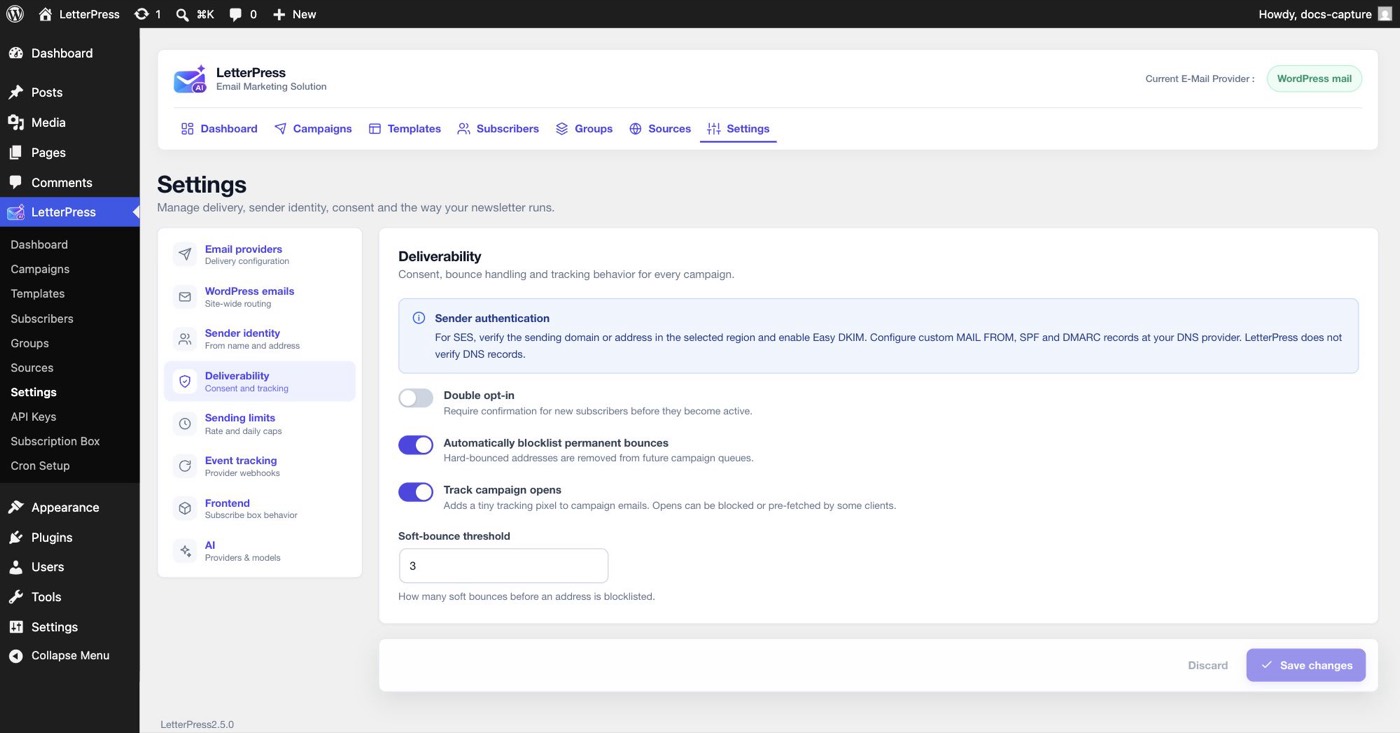
- Double opt-in requires confirmation before new subscribers become active.
- Automatically blocklist permanent bounces removes hard-bounced addresses from future campaign queues.
- Track campaign opens adds a tiny tracking pixel to campaign emails. Some clients block or pre-fetch it, so treat open rates as directional.
- Soft-bounce threshold sets how many soft bounces before an address is blocklisted.
The sender authentication banner reminds you what your provider needs from you: for SES, verify the sending domain in the selected region and enable Easy DKIM, and configure MAIL FROM, SPF, and DMARC records at your DNS provider. LetterPress does not verify DNS records for you.
See Blocklist for what happens to addresses that bounce, complain, or unsubscribe.
Sending limits
Under Settings > Sending limits you protect your sending reputation and stay inside provider quotas.
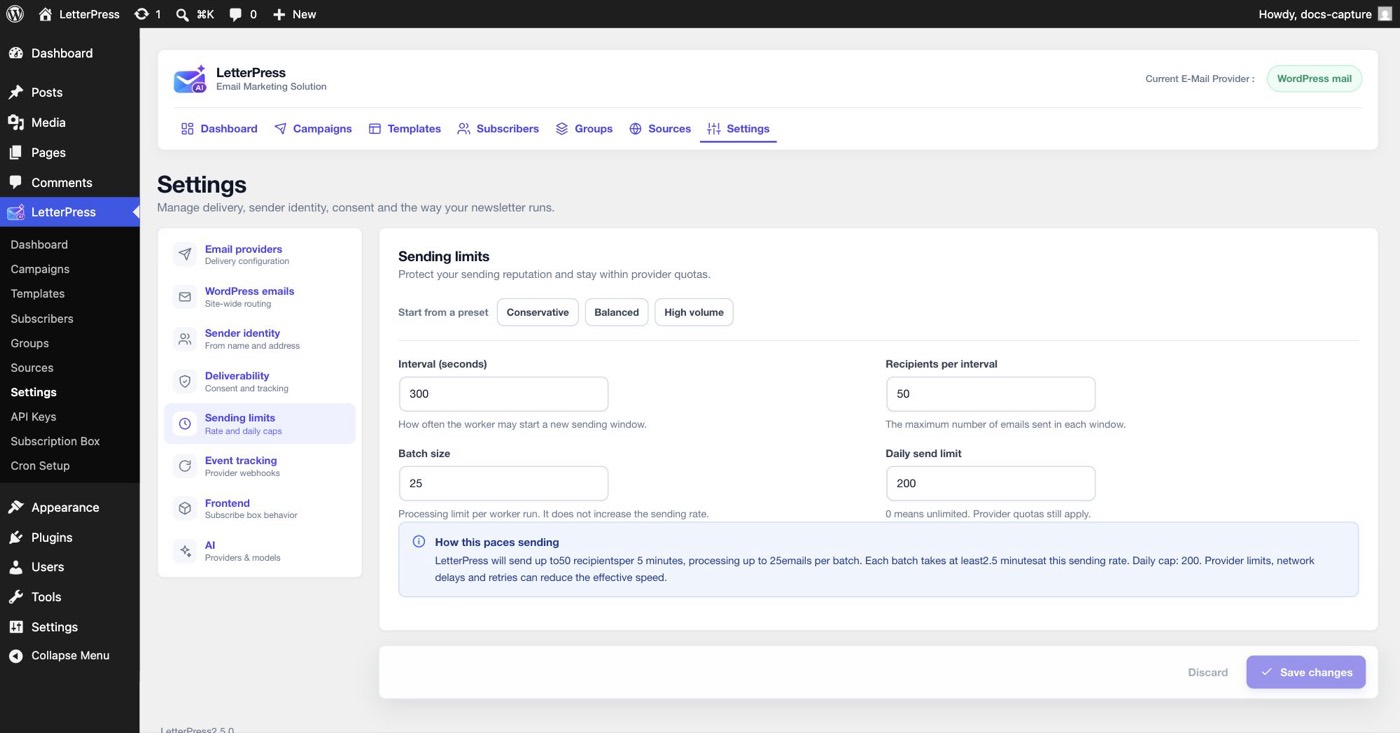
Start from a preset, Conservative, Balanced, or High volume, then fine tune:
| Setting | Meaning |
|---|---|
| Interval (seconds) | How often the worker may start a new sending window |
| Recipients per interval | Maximum emails sent in each window |
| Batch size | Processing limit per worker run. It does not increase the sending rate |
| Daily send limit | 0 means unlimited. Provider quotas still apply |
An explainer under the fields shows the resulting pace, for example up to 50 recipients per 5 minutes, batches of 25, and a daily cap of 200. Provider limits, network delays, and retries can reduce the effective speed. See Cron Setup to keep the worker running on schedule.
For Amazon SES, the worker also respects the account's live sending rate and daily quota from the provider after a successful connection test. The effective limit is the lower of your LetterPress setting and the provider quota.
Event tracking and webhooks
Under Settings > Event tracking LetterPress receives delivery, bounce, complaint, open, click, and unsubscribe events from your provider.
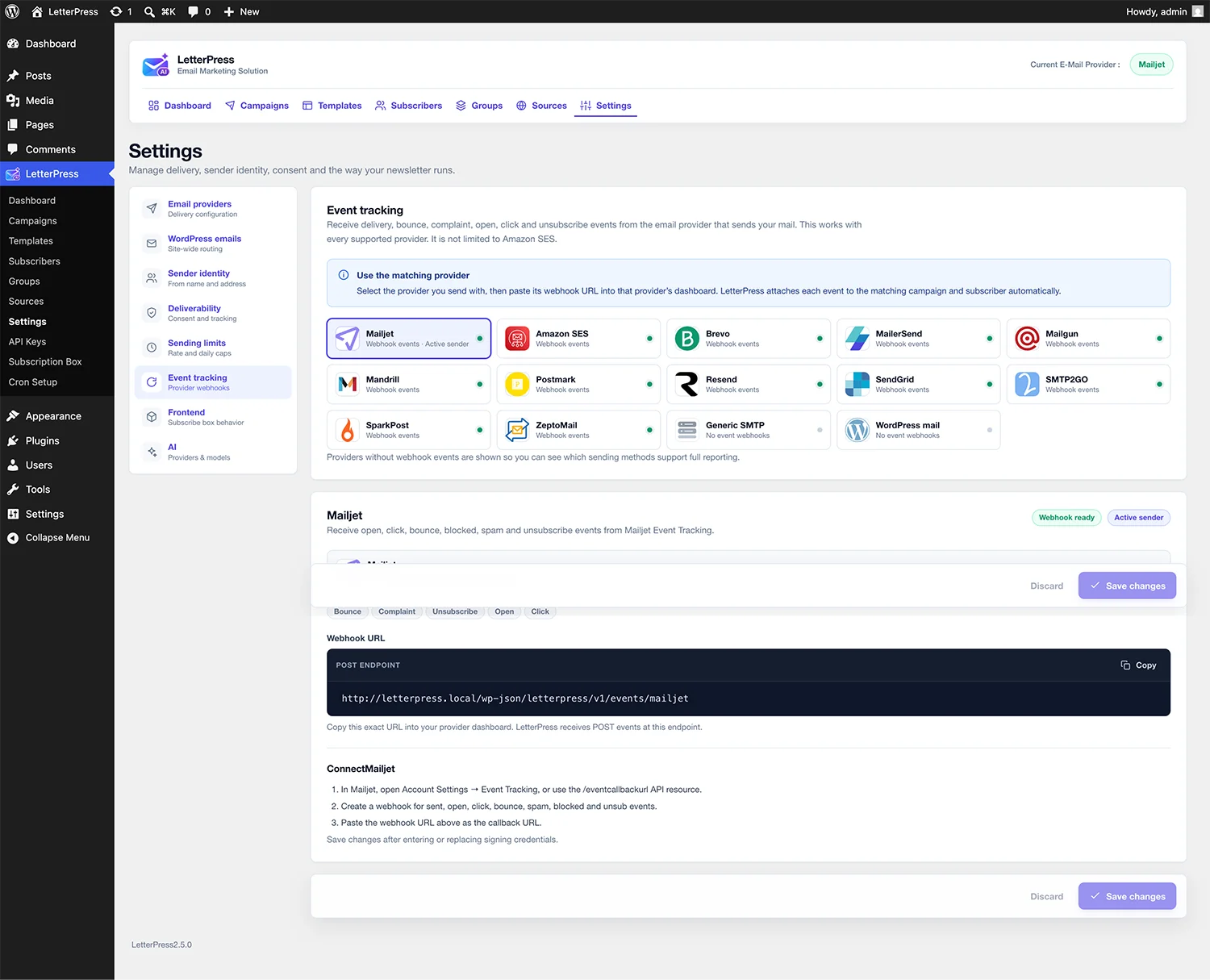
- Select the provider you actually send with.
- Copy the webhook URL LetterPress shows for it.
- Paste that URL into the provider's dashboard webhook settings.
LetterPress validates incoming webhook requests when the provider supports signing, and attaches each event to the matching campaign and subscriber automatically.
WordPress mail and generic SMTP have no webhook events and therefore no delivery reporting. The page warns you when your active provider cannot send delivery events, which is why reports stay empty on PHP mail.
Amazon SES uses an SNS topic. Add an event destination in SES for delivery, bounce, complaint, and reject events, subscribe the SNS topic to the LetterPress webhook URL, and paste the topic ARN into the SES card. LetterPress confirms the subscription and verifies the SNS signature.
Providers with signed webhooks show the extra fields they need:
- SendGrid: optional Signed Event Webhook public key.
- Mailgun: HTTP webhook signing key.
- Resend: Svix signing secret.
- MailerSend: webhook signing secret.
- Mandrill: webhook signing key.
Postmark, Brevo, SparkPost, SMTP2GO, and ZeptoMail do not sign webhooks by default. Keep the endpoint URL private and use any authentication option the provider offers.
General settings
Under Settings > General you control whether LetterPress loads its stylesheet for the public signup form. Double opt-in for public signups is under Settings > Deliverability. See Subscription Box for the forms themselves.
Next steps
- Design the emails you will send in the Email Builder.
- Style WordPress notifications with Transactional Emails.
- Keep the queue moving with Cron Setup.