Cron Setup
WordPress only runs scheduled tasks when someone visits your site. On quiet sites that means campaign queues crawl, and scheduled sends fire late. The Cron Setup page fixes this with one server cron job that triggers WordPress scheduled tasks every minute, including LetterPress campaign processing.
Open LetterPress > Cron Setup.
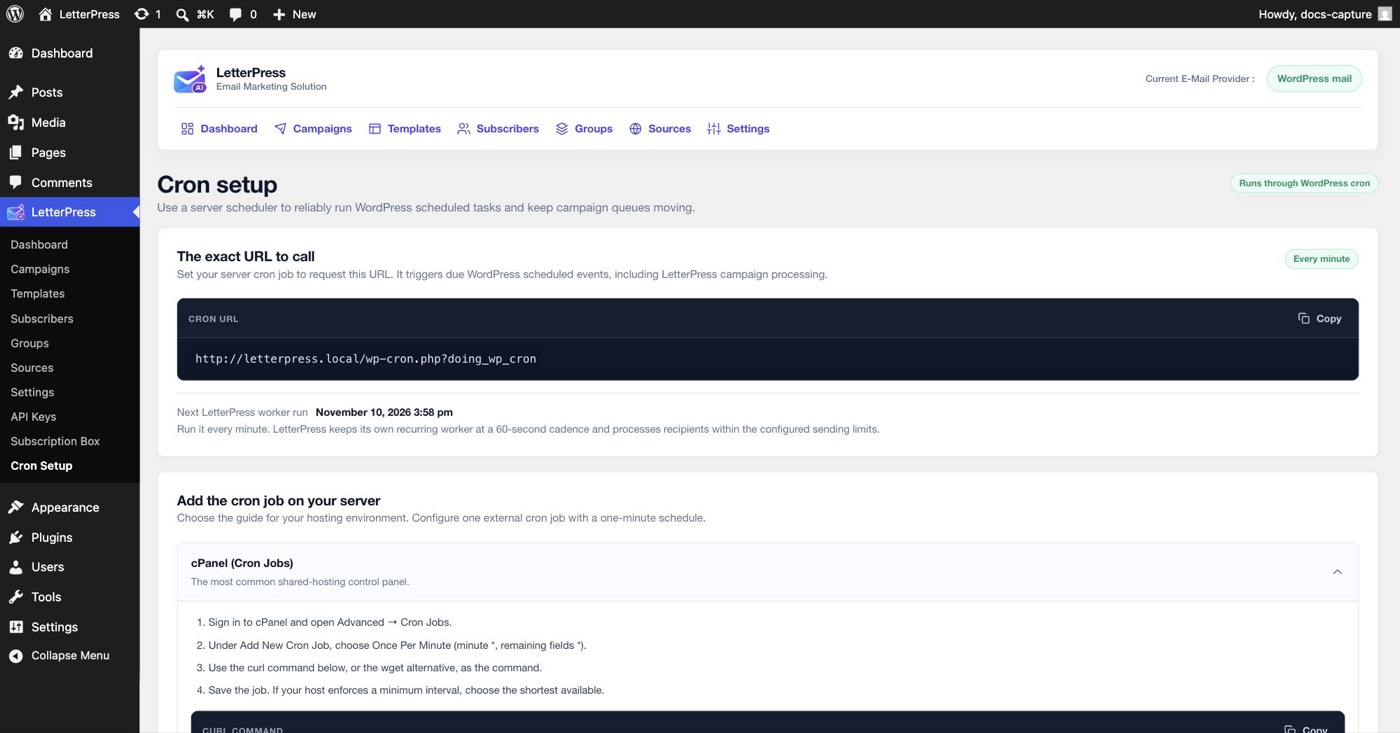
The URL to call
The page shows the exact URL your server should request:
https://example.com/wp-cron.php?doing_wp_cron
Set a cron job that requests this URL once per minute. The URL is WordPress core's cron runner, so it also processes due events from WordPress and other plugins. Call it once per minute, not once per second.
LetterPress keeps its own recurring worker on a 60 second cadence and processes recipients within your configured sending limits. The page also shows the next scheduled worker run so you can confirm the queue is alive.
Adding the cron job on your server
The page includes step by step guides for cPanel, Plesk, a Linux VPS with SSH, PHP CLI, and Windows PowerShell. The typical command looks like:
*/1 * * * * curl -s "https://example.com/wp-cron.php?doing_wp_cron" > /dev/null
If your host enforces a minimum interval, choose the shortest available. Even every five minutes keeps campaign sending reasonably steady. One minute is simply the most reliable.
After the server cron is confirmed working, you can add this line to wp-config.php before the "stop editing" comment:
define( 'DISABLE_WP_CRON', true );
That stops page-load-triggered WP-Cron, which avoids two runners competing. Do not add it until a real cron job is in place.
How a worker run behaves
A worker run is short by design. It claims a batch of recipients, sends them within the rate limit, then schedules the next run. Large lists are sent across many runs instead of one long request.
The worker also stops early in a few situations:
- Batch size reached. It schedules the next run a few seconds later.
- Rate window exhausted. It waits for the next available send slot and reschedules.
- Daily limit reached. It stops until the daily counter resets.
- PHP time budget reached. It returns unprocessed rows to the queue and reschedules.
PHP execution time
The worker gives itself 20 seconds by default. If max_execution_time is lower, it uses that value minus 5 seconds, with a minimum of 1 second.
For example, a 10 second PHP limit gives the worker 5 seconds. A 30 second limit still gives it 20 seconds, because the plugin caps the budget to leave room for WordPress shutdown and queue writes. A value of 0, which usually means no limit, keeps the 20 second budget.
This is why a slow provider or a very large batch does not time out halfway through a request. The worker releases anything it did not process and starts the next run instead.
Retries and backoff
A failed recipient is retried up to three times in total. The retry decision depends on the failure:
- A throttled response is retried.
- A permanent failure is not retried.
- An unknown transient failure is retried while attempts remain.
The wait grows with each attempt. The first retry is about 60 seconds, the second is about 2 minutes, and the delay is capped at 15 minutes. A random jitter of up to 20 percent is added so a large batch does not retry in one burst.
After the third failed attempt, the recipient is marked failed and the error is stored on the queue row. It no longer blocks the rest of the campaign.
Stale rows
A crash or a killed PHP process can leave a queue row marked as sending. LetterPress treats a row that has been locked for more than 10 minutes as stale.
The cleanup marks that row failed instead of retrying it. The reason is simple: the provider may already have accepted the message. Retrying could send the same email twice. The row keeps an error explaining that delivery status is unknown, so you can review it before deciding what to do.
The daily limit
The daily send limit is counted in UTC and resets at midnight UTC. When the limit is reached, the worker stops claiming new recipients and records the time it hit the cap. Pending queue rows stay in place.
You can raise the limit under Settings > Sending limits and the next worker run continues. Setting the limit to 0 removes the cap, but your provider's own quota still applies.
Each successful send counts toward the daily limit. A failed attempt releases its daily reservation, then the retry reserves capacity again when it goes out.
Do you need this?
- Low traffic sites, scheduled campaigns, or big lists: yes. Without it, sends wait for a visitor.
- High traffic sites: WordPress cron triggers often enough on its own, and the external job adds a safety net at no cost.
Campaign sends are resumable batches, see Campaigns. If a run is interrupted, the next worker run picks up where the last one stopped.
Next steps
- Tune the pace the worker uses under Sending limits.
- Review failed and blocked addresses in Blocklist.
- Schedule your first send in Campaigns.