AI Email Generation
LetterPress Pro adds AI email generation. Describe the campaign in a sentence or two, pick a provider and model, and Pro drafts a complete email, including global styles, header and footer, rows, columns, and styled content blocks. The result is a normal template you can edit in the visual builder.
Your AI keys stay on your site. Pro talks to the provider you choose directly. Keys are used server-side only, are not returned by the REST API, and are not localized into the browser.
Connect a provider first
Open Settings > AI.
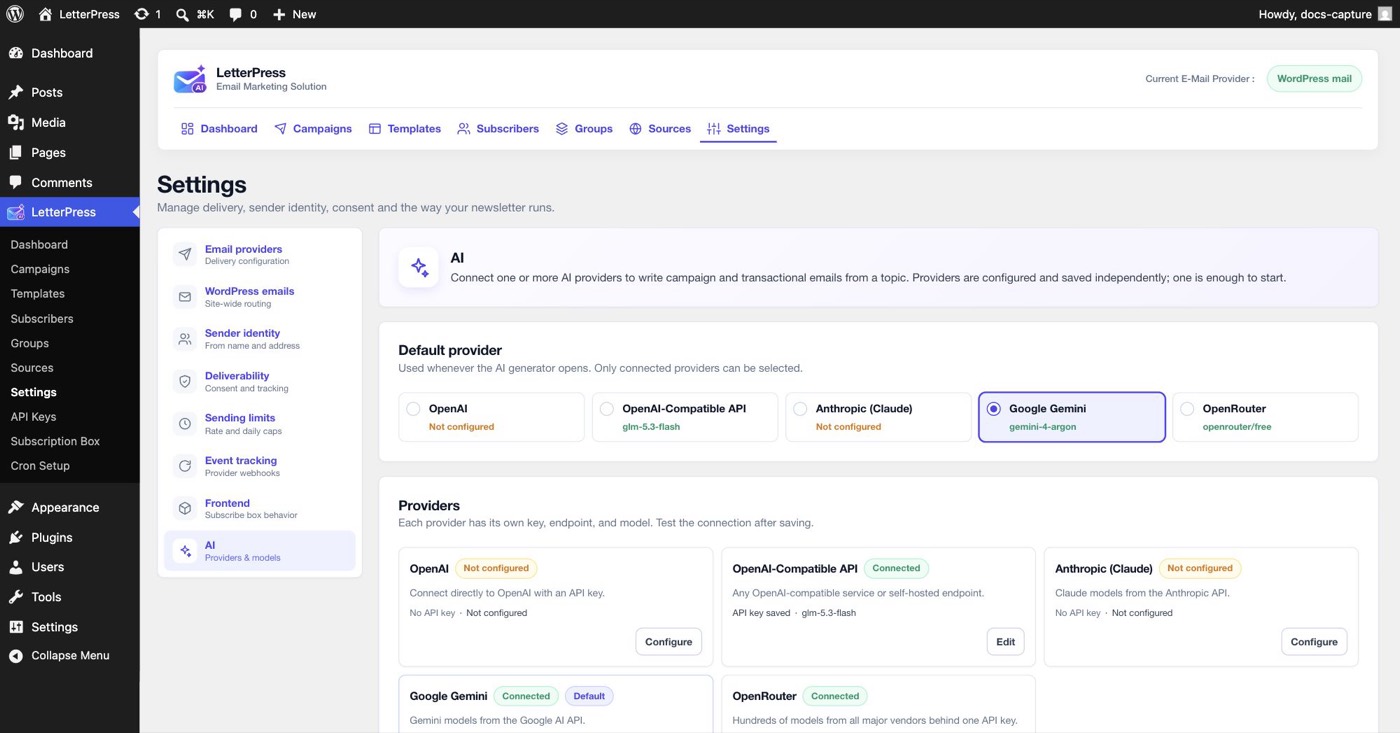
- Click Configure on a provider card: OpenAI, an OpenAI-compatible endpoint, Anthropic Claude, Google Gemini, or OpenRouter.
- Paste your API key and choose a model. OpenAI-compatible works with any compatible service or self-hosted endpoint, and OpenRouter gives you hundreds of models behind one key.
- Save and use Test connection. The card switches to Connected with the model underneath.
- Set the Default provider at the top. Only connected providers can be selected, and this is the one the generator opens with.
Each provider keeps its own key, endpoint, and model, so you can keep several connected and switch when needed.
Generate an email
- Open any template in the builder and click Write with AI.
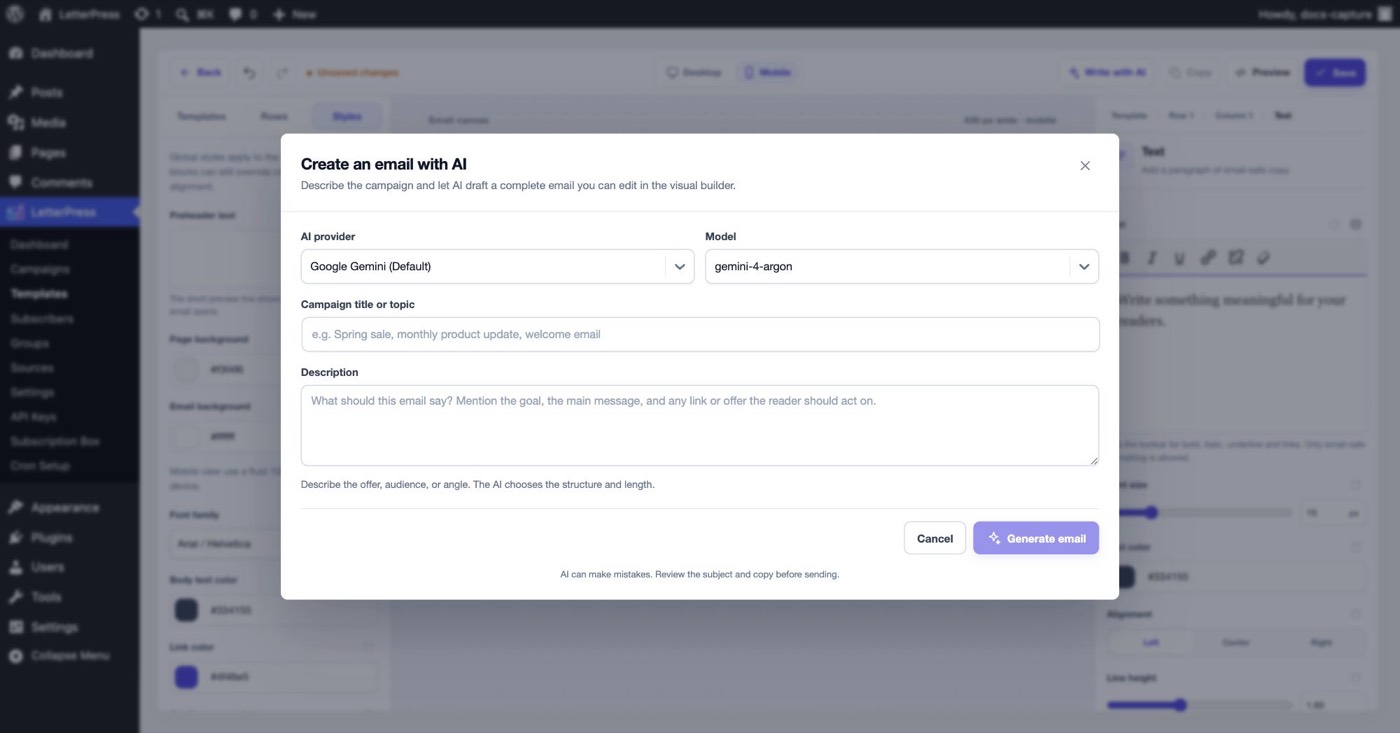
- In the Create an email with AI dialog, pick the provider and model, or keep the defaults.
- Enter a Campaign title or topic, for example Spring sale or Monthly product update. The field accepts up to 200 characters.
- Fill in the Description with the goal, the main message, and any link or offer the reader should act on. The field accepts up to 2,000 characters.
- Click Generate email.
The generated email lands directly on the canvas. From there it is a normal template: edit blocks, adjust styles, save. The prompt includes every supported block type and your merge variables, so the draft is builder-native rather than pasted HTML.
A few things worth knowing:
- If the provider times out or errors, you see the error immediately and can retry.
- You can cancel the request while it runs. Your topic and description stay in the dialog for another try.
- The result is validated before it reaches the canvas, so broken or invented structures get repaired instead of crashing the builder.
- AI can make mistakes. Review the subject and copy before sending.
Prompt examples
A good prompt names the audience, the purpose, and the action you want. You do not need a long brief. These five examples cover common campaigns:
- "Create a professional order confirmation email for an online fashion store."
- "Design a welcome email for new members of my fitness website."
- "Create a modern weekly newsletter with three featured articles."
- "Build a course completion email with a certificate announcement."
- "Design a booking confirmation email for a premium hotel."
For a stronger result, add the offer and the link target:
Topic: Spring sale
Description: Announce 25 percent off all outdoor furniture for the next
three days. The audience is past customers. Use a bright, practical tone.
The main button should link to https://example.com/spring-sale.
The AI chooses the layout and length. You choose the visual direction by describing the mood, the audience, and the kind of content that should be prominent.
What the meta shows
After generation, the template's meta row shows the provider, the requested model, the actual routed model when it differs, token usage, and estimated provider cost, so spending stays visible.
Next steps
- Polish the draft in the Email Builder.
- Start from a proven design in Pre-Made Templates.
- Send it as a newsletter with Campaigns.