Migrate from MailPoet, Newsletter & FluentCRM to LetterPress
Switching email plugins should not mean losing your audience. LetterPress imports your contacts, lists, tags, statuses, custom fields and unsubscribe history, so you can keep sending to the people who already trust you.
Supported today: MailPoet, The Newsletter Plugin, FluentCRM and Icegram Express. Mailchimp lists can be imported with a CSV file.
Open LetterPress > Migrate to start. The menu item appears while a supported plugin is active and has contacts to move. The sections below cover each plugin, then walk through the common import screen.
Migrate from MailPoet to LetterPress
MailPoet users can move without exporting anything first.
- Keep MailPoet installed and active.
- Open LetterPress > Migrate.
- Select MailPoet.
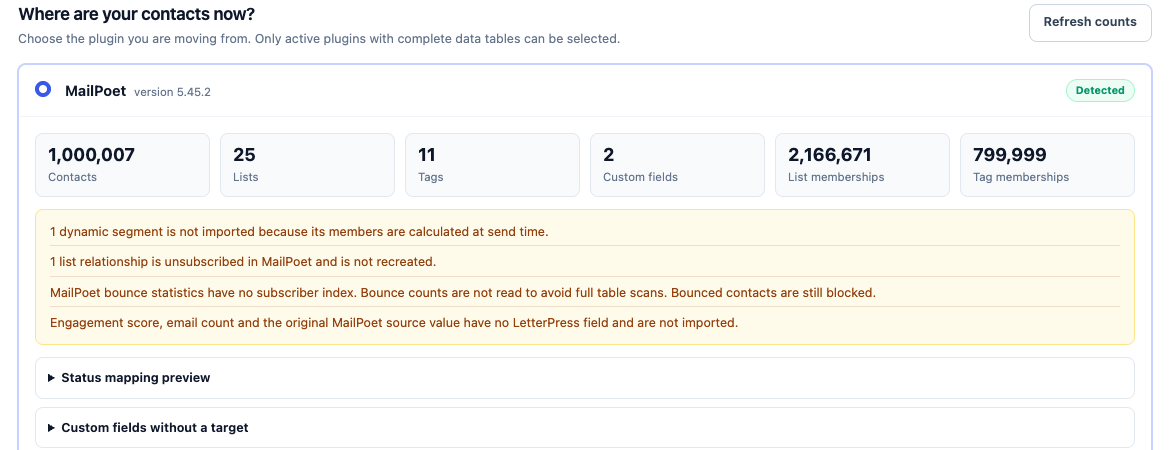
- Review the detected contacts, lists, tags and custom fields.
- Choose how existing contacts should be handled.
- Click Start migration.
MailPoet dynamic segments are not imported because their members are calculated at send time. Bounce statistics may not be readable when MailPoet has no subscriber index, but bounced contacts are still blocked.
If you prefer a manual route, go to MailPoet > Subscribers > Export and import the CSV in LetterPress > Subscribers > Import / Export. The direct migration keeps more data, including lists and suppression history.
Migrate from The Newsletter Plugin to LetterPress
The Newsletter Plugin stores lists and profile fields on its subscriber records. LetterPress reads them directly.
- Keep The Newsletter Plugin active.
- Open LetterPress > Migrate.
- Select The Newsletter Plugin.
- Check the list and profile field preview.
- Start the import.
The core Newsletter plugin does not provide tags, so no tag relationships are created. Unsubscribed, bounced and complained contacts stay suppressed. Profile fields without a LetterPress equivalent are reported before you start.
A CSV export from Newsletter is also possible, but the direct import preserves lists and unsubscribe history.
Migrate from FluentCRM to LetterPress
FluentCRM contacts, lists, tags and custom fields move in one run.
- Keep FluentCRM active.
- Open LetterPress > Migrate.
- Select FluentCRM.
- Review the list and tag counts.
- Start the import.
FluentCRM tags become LetterPress groups named Tag: tag name. Lists become normal groups. Contacts that unsubscribed from a FluentCRM list are not recreated in that list.
Phone numbers, addresses, dates of birth and lifecycle totals have no native LetterPress field and are reported as skipped.
Migrate from Icegram Express to LetterPress
Icegram Express, formerly Email Subscribers, is now supported.
- Keep Email Subscribers active.
- Open LetterPress > Migrate.
- Select Icegram Express.
- Review the contact, list and custom field counts.
- Start the import.
LetterPress imports contacts, lists, custom fields, unsubscribes, hard bounces, spam complaints and blocked addresses. The core Icegram Express plugin does not provide tags. Custom fields without a matching LetterPress field are reported and skipped.
Blocked addresses that are not attached to a contact cannot be imported. The screen tells you how many were found.
Migrate from Mailchimp to LetterPress
Mailchimp does not have a direct migration connector. Use a CSV export and the LetterPress importer.
- In Mailchimp, open Audience > All contacts, or open the segment or group you want to move.
- Click Export Audience or Export segment and choose Export CSV.
- Open the email from Mailchimp and unzip the download. Mailchimp may include separate CSVs for subscribed, unsubscribed, non-subscribed and cleaned contacts.
- In WordPress, open LetterPress > Subscribers > Import / Export.
- Switch to Import, choose the CSV for subscribed contacts and click Import CSV.
The importer reads the Email Address, First Name and Last Name columns. Other Mailchimp columns are ignored, including Tags. Rows marked unsubscribed, cleaned, archived or non-subscribed are skipped.
The upload limit is 10 MB. For a larger audience, split the export into smaller CSV files and import them one at a time.
Imported contacts are treated as subscribed and pre-consented. No confirmation email is sent.
Tags and groups are not created from the CSV. Create your groups in LetterPress > Groups, then filter the Subscribers screen by the CSV import source, select the contacts and use Add to group.
Before you start
- Back up your site. A backup is always a good idea before a large import.
- Keep the old plugin installed and active. LetterPress reads its data. It does not change or delete anything there.
- Leave your old plugin's data in place until you have checked the result.
- Do not send campaigns during the import. Nothing is sent by the import itself, but a calm inbox makes the result easier to check.
The Migrate menu item only appears while a supported plugin is active and has contacts to move. If you do not see it, check that the old plugin is still active.
What comes across
| Your old plugin | LetterPress |
|---|---|
| Contacts and names | Subscribers |
| Subscribed, pending, unsubscribed, bounced and complained | Matching subscriber statuses |
| Lists | Groups |
| Tags | Groups named Tag: name |
| Matching custom fields | Native subscriber fields |
| Unsubscribes and bounces | Blocklist entries |
A list is the old plugin's name for a named audience. LetterPress stores each list as a group, so no separate list object or duplicate audience is created.
Some data cannot be carried over because LetterPress has no matching field. The screen tells you about it before you start, and the final report counts it. Nothing is dropped silently.
Step 1: Open Migrate
In the WordPress admin, open LetterPress > Migrate. It sits right after Subscription Box.
The first card shows every supported plugin it can find. Pick the one you are leaving. The counts come straight from that plugin's data.
If a plugin is active but its tables are not ready, LetterPress says so. Open the plugin once so it can finish installing, then return and refresh the counts.
Step 2: Choose what happens to existing contacts
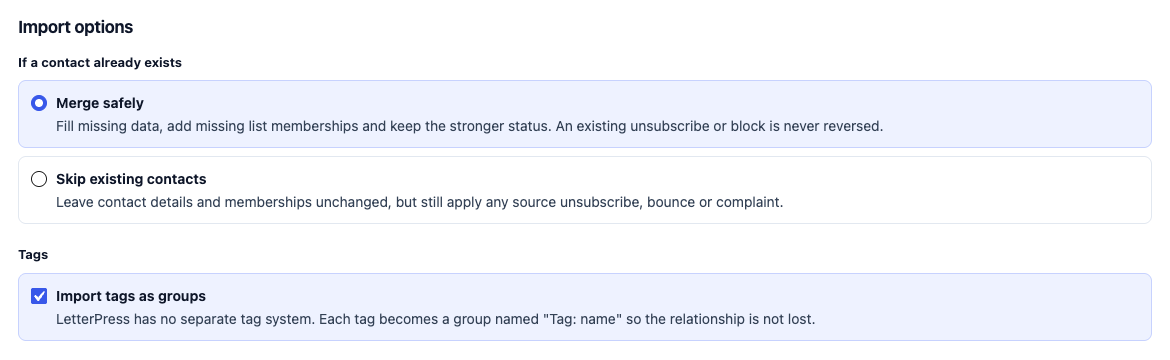
If an email already exists in LetterPress, you have two options.
Merge safely is the recommended choice. LetterPress fills missing details, adds missing group memberships and keeps the stronger status. An existing unsubscribe or block is never reversed.
Skip existing contacts leaves the contact exactly as it is in LetterPress. Unsubscribes, bounces and complaints from the old plugin are still applied.
Both options are safe to run more than once. You will not create duplicates.
Step 3: Choose tag handling
LetterPress has one way to organise contacts: groups. When Import tags as groups is on, each tag becomes a group named Tag: tag name. The relationship is preserved and can be used to target campaigns.
Turn it off only if you do not want tags in LetterPress.
Step 4: Start the migration
Review the short checklist and click Start migration.
The import runs in batches. You can watch the overall progress and every stage:
- Lists and tags are created or reused.
- Contacts are imported, merged or skipped.
- Group memberships are added.
- A final verification pass compares the source and the result.
You can pause at any time. You can also close the tab. Your progress is saved, and you can come back to LetterPress > Migrate to resume.
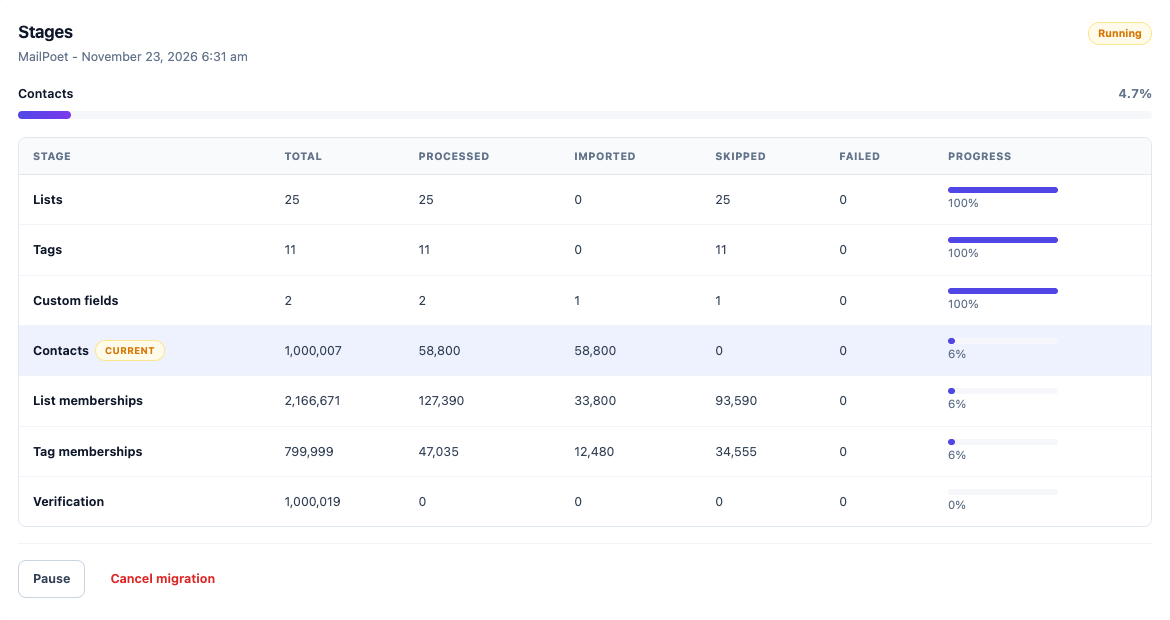
If a stage shows skipped rows for lists or tags, those groups already existed and were reused. Nothing was lost.
Step 5: Check the result
When the run finishes, the screen shows a summary and a verification table. Look for these checks:
- Contact accounting: every source contact was imported, merged, skipped or failed.
- Suppression safety: no unsubscribed, bounced or complained contact became subscribed.
- Status distribution: every status was mapped.
- Lists, tags and memberships: every relationship was processed.
- Contact emails: every valid address exists in LetterPress.
A green Passed result means that check is clean.
In the summary, Lists created means LetterPress groups created from the source lists. It does not create a separate list object.
Two results are normal and do not need fixing:
- Completed with warnings means some data had no LetterPress equivalent, such as an unsupported custom field. The report tells you exactly what was skipped.
- Skipped lists or tags were already present from an earlier run and were reused, not duplicated.
If a contact fails, use Retry failed records. The error list names the stage and the email, so you can fix the source row and try again.
Step 6: Finish up
- Open Subscribers and check a few people you know.
- Open Groups and look at the member counts.
- Open Blocklist and confirm the suppressed addresses.
- Send a test campaign to yourself.
- Keep the old plugin inactive for a few days. Do not delete its data until you are confident.
- Use Clean up history on the Migrate screen when you are done. This only removes the report. Imported contacts, groups and blocklist entries stay.
What is not imported
- Dynamic segments calculated at send time.
- Custom fields without a matching LetterPress field.
- Engagement scores, open counts and source-specific values that have no field.
- List and tag descriptions.
- Some bounce history when the source does not index it.
- Mailchimp data without a CSV export.
These limits are shown on the Migrate screen before you start. The final report counts anything that was skipped.
Common questions
Is migration included? Yes. The Migrate screen is part of regular LetterPress.
Will the import send emails? No. Welcome emails, confirmations, campaigns and automations are not sent during the run.
Can I run it again? Yes. Repeat runs merge safely and never create duplicates.
Will unsubscribed contacts become subscribed again? No. Suppression always wins. An address that unsubscribed, bounced or complained stays blocked.
Can I pause or close the page? Yes. Progress is saved, and the run resumes from the same place.
Can I migrate from more than one plugin? Yes. Run each source one at a time. Groups with the same name are reused instead of duplicated.
Which plugins can I migrate from? MailPoet, FluentCRM, The Newsletter Plugin and Icegram Express. Mailchimp lists can be imported with a CSV file.
Why is Migrate missing from the menu? No supported plugin with contacts is active. Activate the plugin you want to move from, or check that it finished installing.
What about a really large list? The importer works in batches and is built for large audiences. You can pause and resume, and the final verification confirms that every contact was accounted for. See Built for Scale for measured results.
Next steps
- Subscribers explains statuses, groups, searches and bulk actions.
- Groups and Sources shows how to target the lists you just imported.
- Blocklist covers suppression and how to safely re-enable an address.
- Built for Scale shows how LetterPress performs with a million contacts.
Ready to move? Open LetterPress > Migrate and bring your audience with you.