Pre-Made Templates
Every LetterPress template you save starts from a blank canvas or from the pre-made library. The free plugin ships six starter designs, and LetterPress Pro expands the library to 50 professionally designed templates across nine categories. That makes 56 designs in total when Pro is active, each a complete email with styled rows, real copy structure, and royalty-free imagery.
The free starter set covers a case study spotlight, event invitation, product launch, seasonal sale, weekly digest, and welcome onboarding email. They stay available alongside the Pro designs.
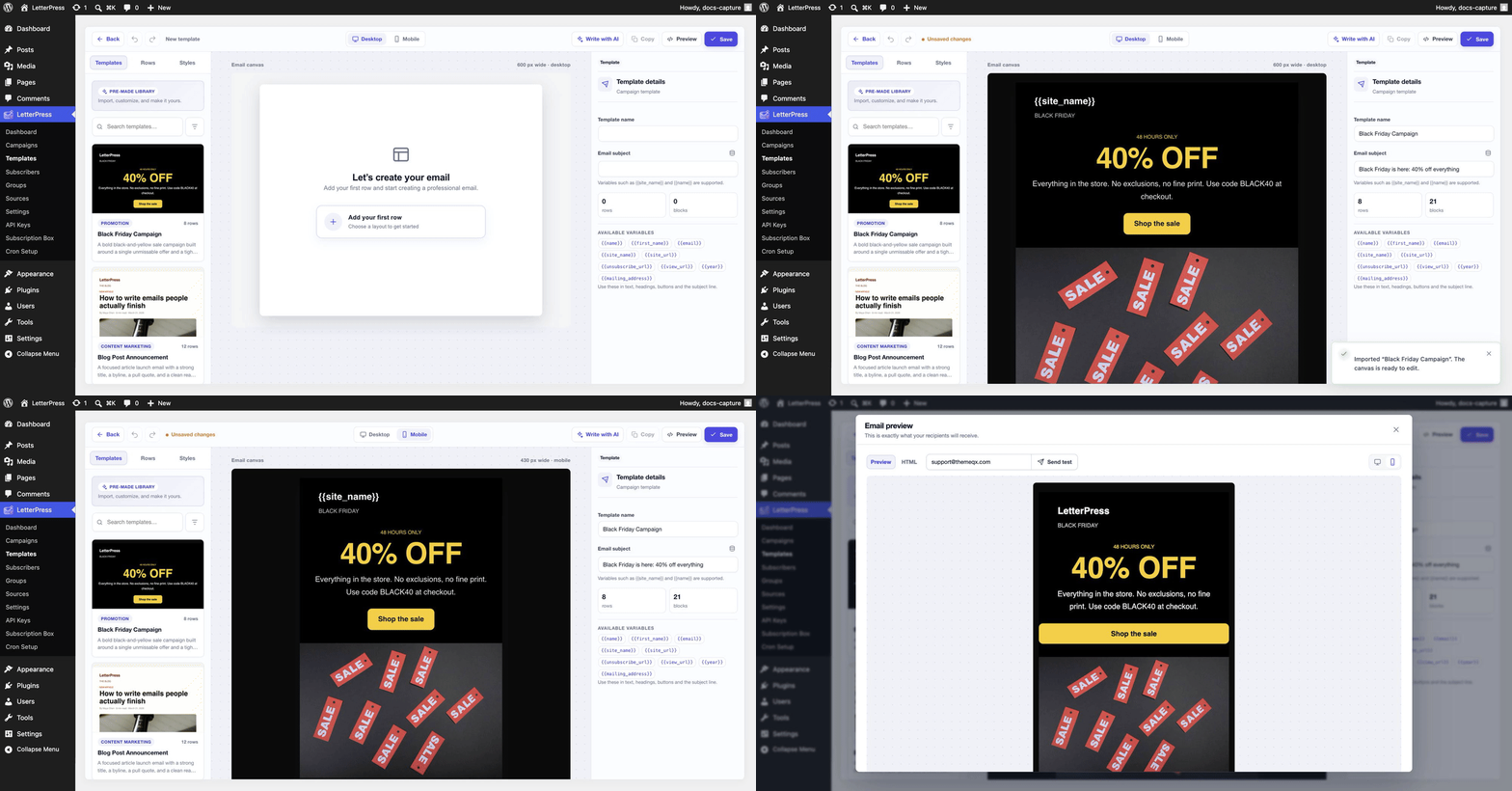
Open the library from Templates > New template. The builder opens with the Templates tab of the library showing every pre-made design, labeled with its category and row count.
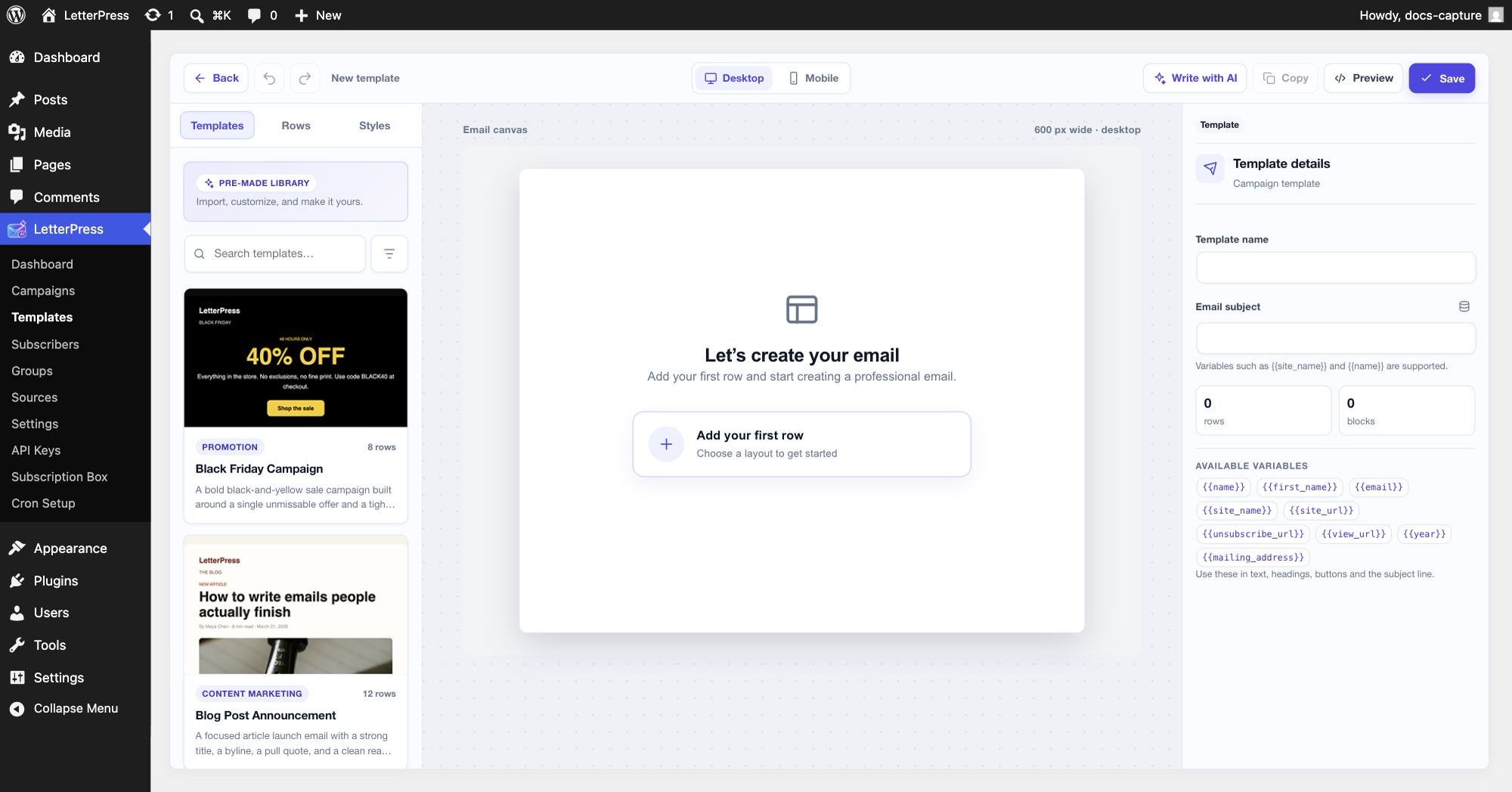
What Pro adds
Pro registers templates in these categories, visible through the search box and filter in the library:
| Category | Templates | Typical designs |
|---|---|---|
| Business | 4 | Client onboarding, invoice and payment request, professional proposal, project status update |
| Content marketing | 3 | Blog post announcement, curated resources, industry news roundup |
| Education | 6 | Course enrollment, assignment deadline, course completion, new lesson alerts |
| Events | 5 | Webinar registration and reminders, event invitation, agenda, follow-up |
| Membership | 4 | Member welcome, renewal confirmation, expiration reminder, community digest |
| Newsletter | 4 | Monthly digest, editorial magazine, creator letter |
| Promotion | 6 | Seasonal sales, flash offers, product launches |
| SaaS | 8 | Workspace welcome, feature announcements, upgrade nudges |
| WooCommerce | 10 | Order confirmations, shipping updates, abandoned cart, review requests |
Templates from every category appear together in the library. Use the search box to find one by name, or the filter button to narrow by category. The free starter set stays available alongside the Pro designs.
Using a template
- Open Templates > New template.
- Find a design in the library and click Import on its card.
- LetterPress loads the full design onto the canvas and fills the template name and subject. A confirmation tells you the canvas is ready to edit.
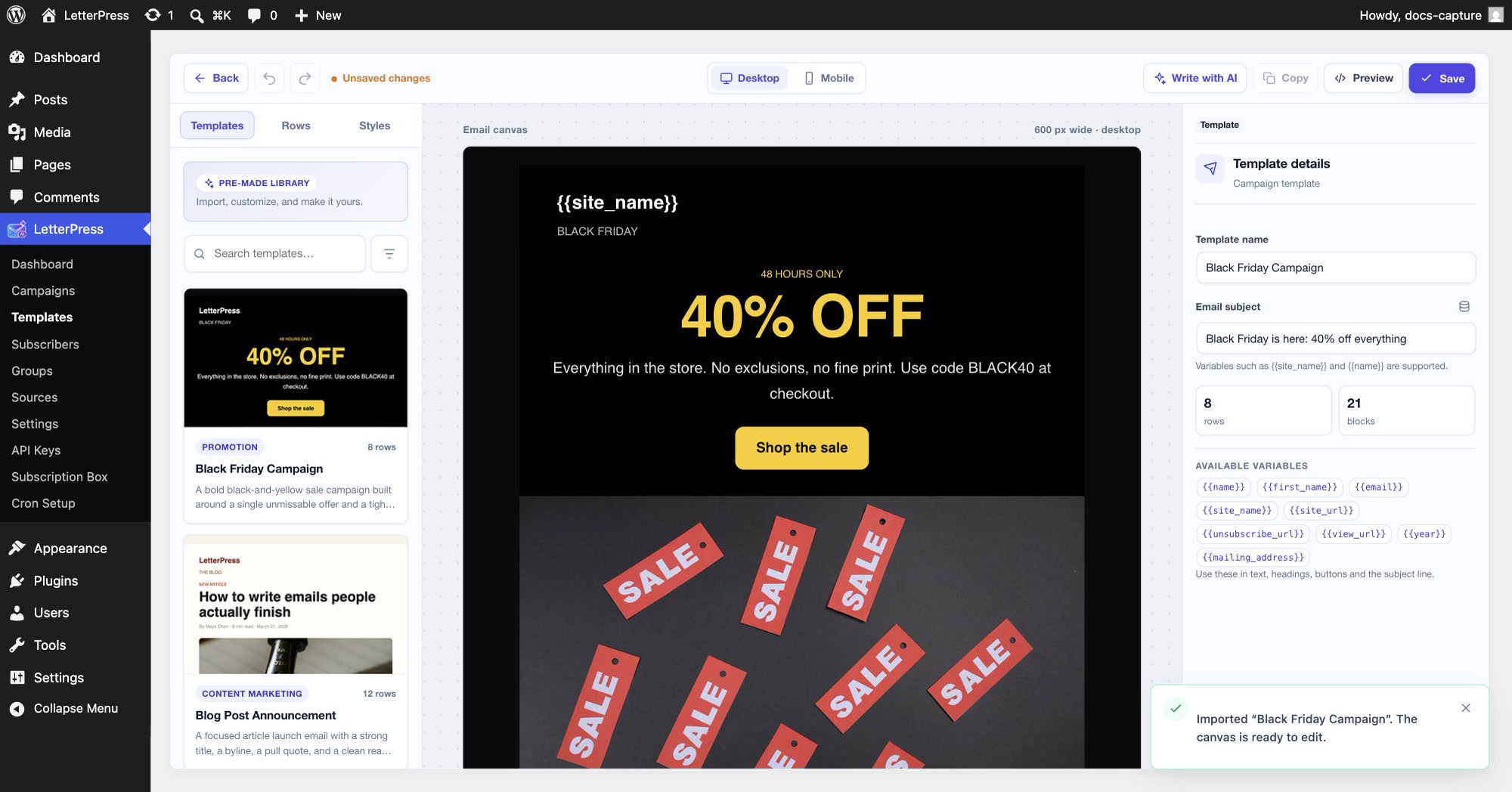
- Edit it like any template: swap the logo and images, rewrite the copy, adjust colors in Styles, and personalize with variables. See the Email Builder guide for the details.
Check desktop and mobile
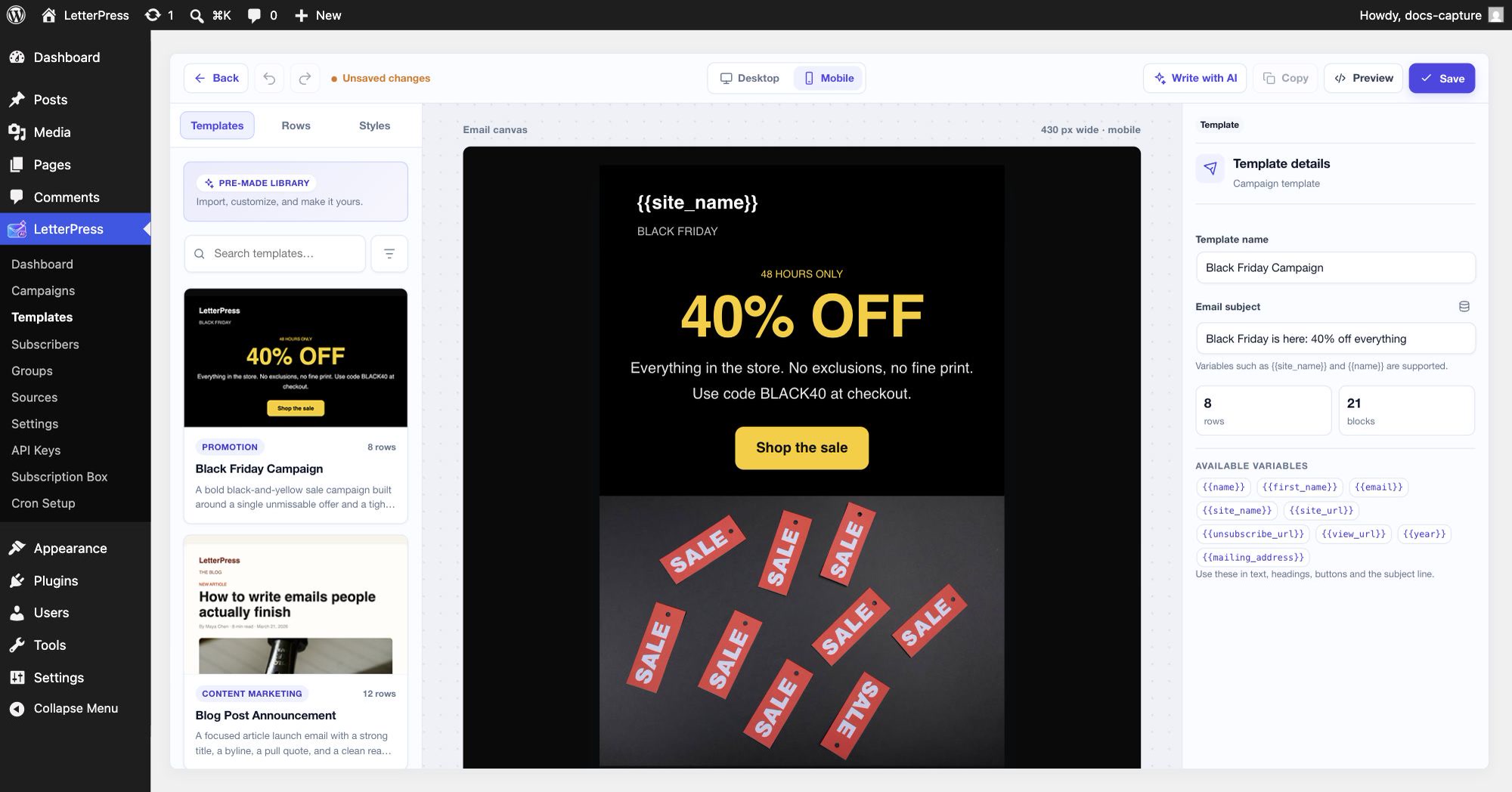
Flip the Desktop and Mobile toggle to see how the design reflows. Rows and columns stack on narrow screens automatically, so most templates look right with no extra work.
Preview before you save
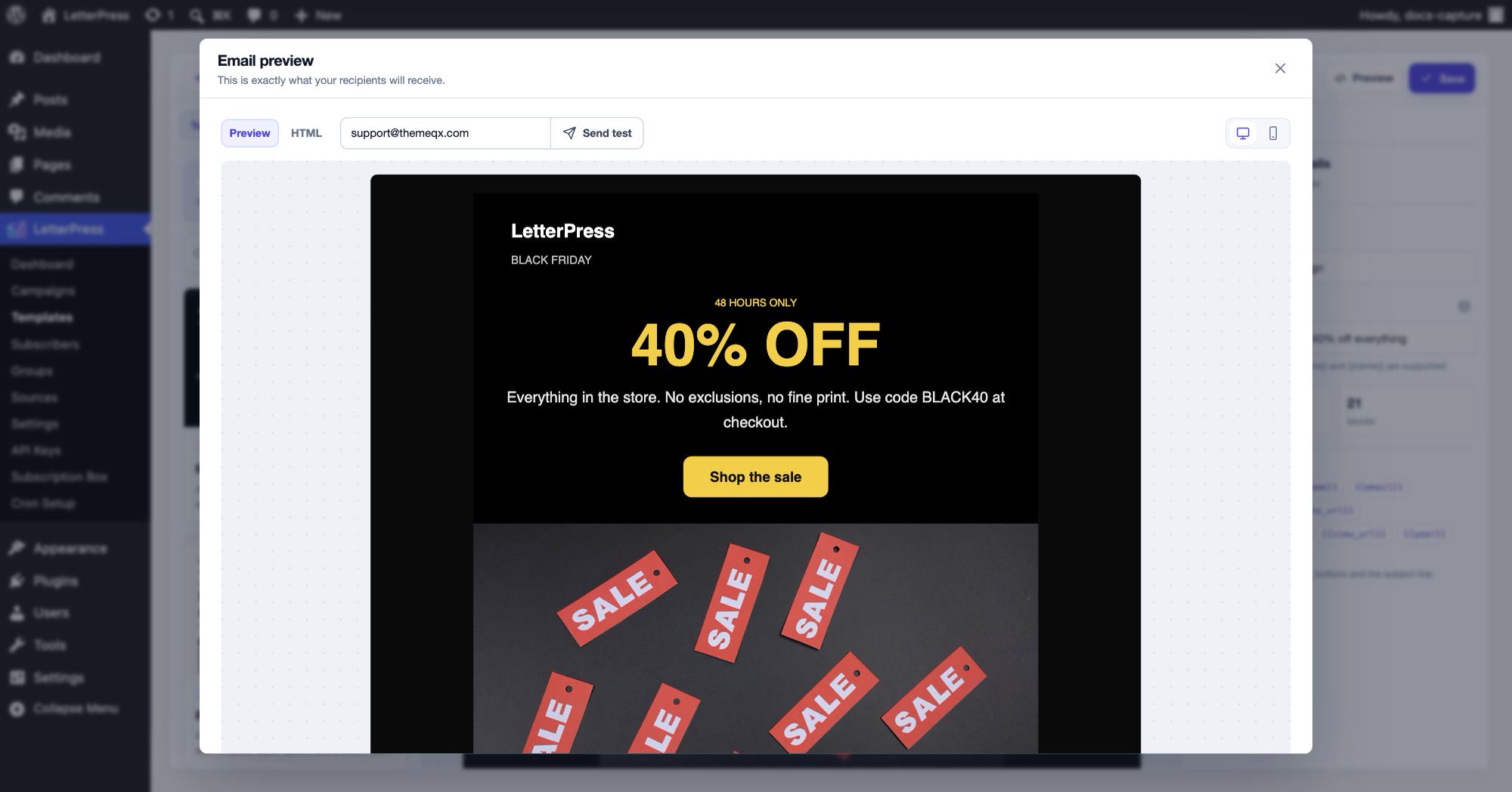
Click Preview to render the finished email exactly as recipients will see it, with variables resolved. Toggle between desktop and mobile inside the preview, check the HTML tab if you want the markup, or Send test a real copy to yourself.
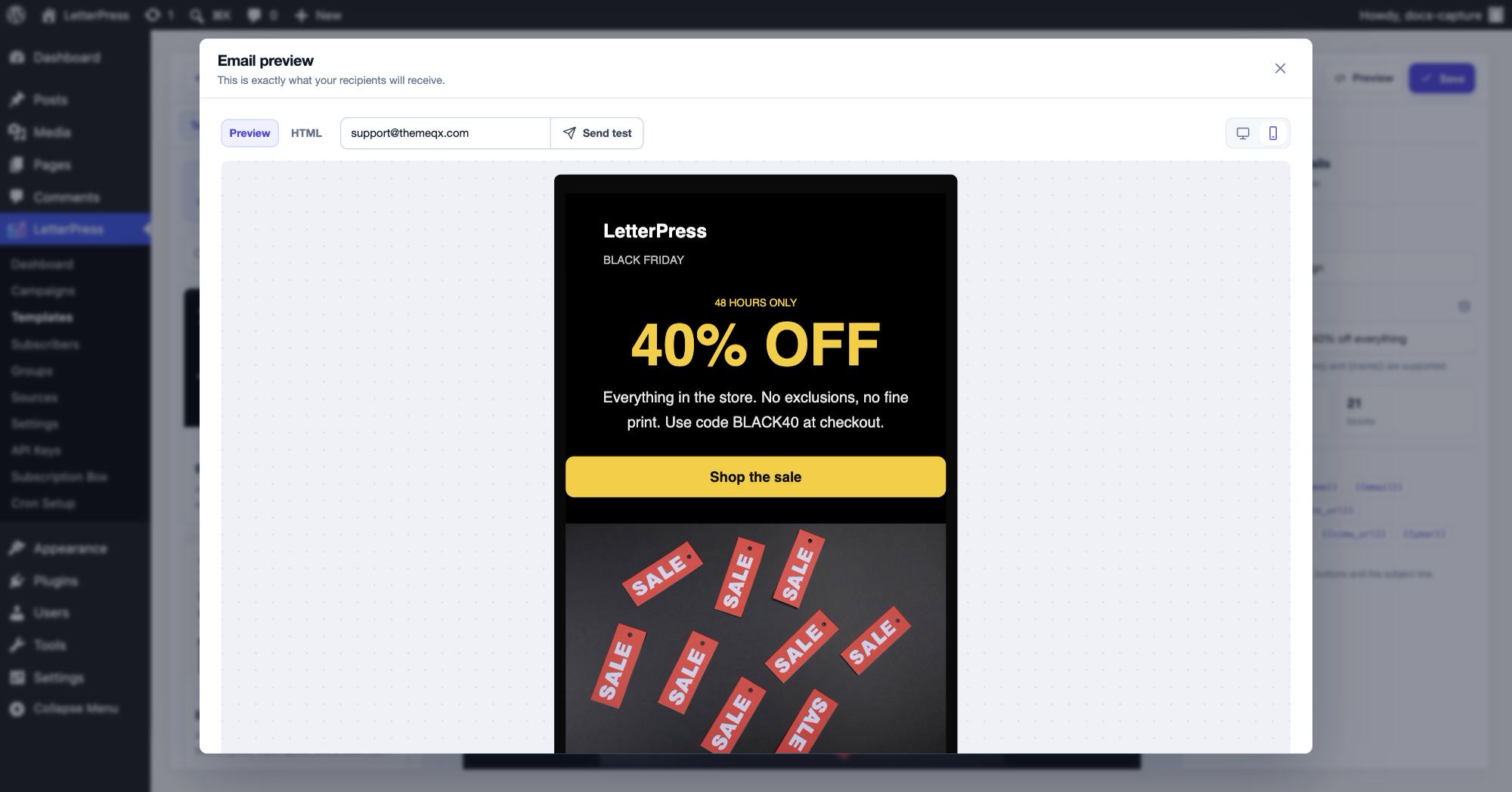
The complete flow, open the library, import a design, view it on mobile, and preview on desktop and mobile, plays out here at a readable pace.
Saving and reusing
Click Save to store the template in your own library under Templates. From there you can duplicate it for variations, assign it to a campaign, or save individual rows globally for reuse across designs. Importing a pre-made template never modifies the library original, so you can import the same design again for a different campaign.
Next steps
- Master the editor itself in the Email Builder.
- Draft something entirely new from a topic with AI Email Generation.
- Put the template to work in Campaigns.