Transactional Emails
Every WordPress site sends transactional email: password resets, registration confirmations, account changes, comment notifications, and similar. By default they are plain text and easy to miss. LetterPress ships a branded template for each event, which you can restyle in the visual builder, preview, and restore at any time.
Where transactional templates live
Open LetterPress > Templates and switch to the Transactional tab.
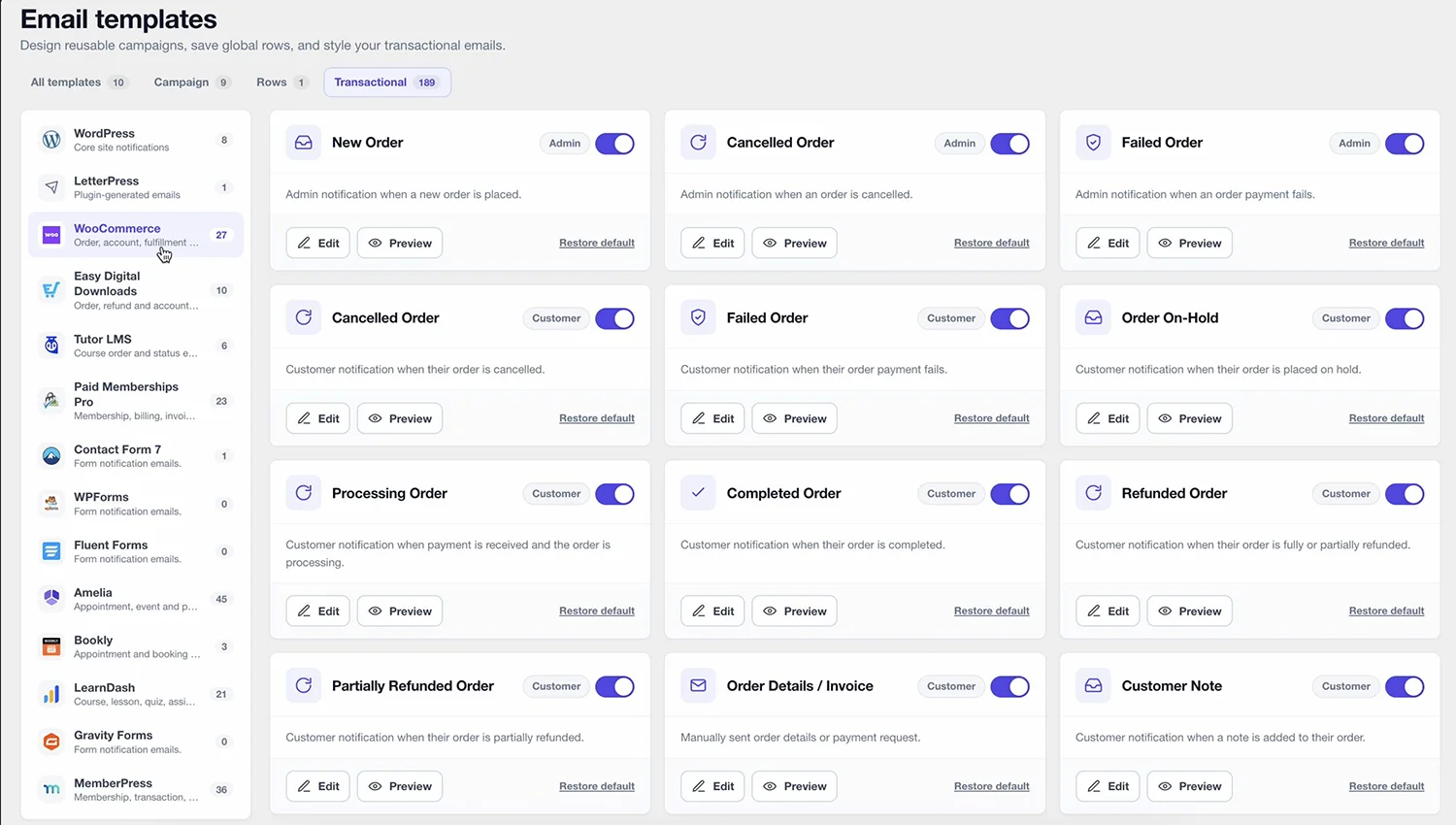
Events are grouped in the sidebar:
- WordPress, core site notifications such as registration, password reset, and comment notices.
- LetterPress, plugin-generated email such as the signup confirmation.
With LetterPress Pro, each active integration adds its own group here, for example all WooCommerce order emails. See Integrations.
How an event works
Each event card shows the recipient, for example User or Admin, and a toggle:
- Toggle on means LetterPress handles this notification with its template.
- Toggle off falls back to the plain WordPress email.
Every card has three actions:
| Action | What it does |
|---|---|
| Edit | Opens the event's template in the visual Email Builder |
| Preview | Renders the email with sample data before you change anything |
| Restore default | Brings back the original template if your edits went sideways |
Because the templates are pre-built, styling a password reset is usually just opening it, swapping the logo and colors, and saving.
Editing an event template
- Open the Transactional tab and click Edit on the event.
- The builder loads the template with its event variables in place, for example
{{reset_url}}in the button link. - Change the design and copy, then save. The toggle is already on, so the next time the event fires, your design goes out.
Keep the required variable for each event in the content. A password reset template without {{reset_url}} would be useless, so double check the variable list in the template inspector before you finish.
The events LetterPress covers
| Event | Recipient | Trigger |
|---|---|---|
| New User Registration | User | Welcome email with a secure set-password link |
| New User Registration | Admin | Admin notice for each new registration |
| Password Reset | User | Password reset email, styling only is customized |
| Password Changed | User | Notice after a password change |
| Email Address Changed | User | Notice after an email address change |
| Email Change Request | User | Confirmation link when a user requests an email change |
| New Comment Notification | Admin / Author | Notice when a new comment arrives |
| Comment Approved | Comment Author | Notice when a comment is approved |
| Subscription confirmation | User | LetterPress signup confirmation for double opt-in |
Event variables come from the site, for example {{user_login}}, {{login_url}}, {{reset_url}}, {{admin_email}}, {{old_email}}, {{new_email}}, {{comment_author}}, {{post_title}}, and {{comment_link}}. The template editor lists the variables available for the selected event and inserts them with a picker.
Building your own plugin? The same registry is open to third party events. See the Transactional Email API to register an event, seed its template, and send it.
Testing
Use the Preview action on the event card. LetterPress fills the variables with sample values so you can see the finished email before a real event triggers it.
WooCommerce and other plugin emails
WooCommerce orders, memberships, forms, and LMS notifications follow the same pattern: each integration registers its events in this tab with its own variables, and you restyle them the same way. Integrations are part of LetterPress Pro, see Integrations for the full list.
Next steps
- Learn the builder itself in the Email Builder.
- Make sure delivery works reliably with Email Delivery.